WMC help
MUD client troubleshooting: connection, text, map
This page collects the problems players run into most often and what to check for each: a world that will not connect, strange characters in the text, an empty map or missing health bars, and the warning your system may show the first time you open the client. It also lists where the client keeps your data and how to report a bug.
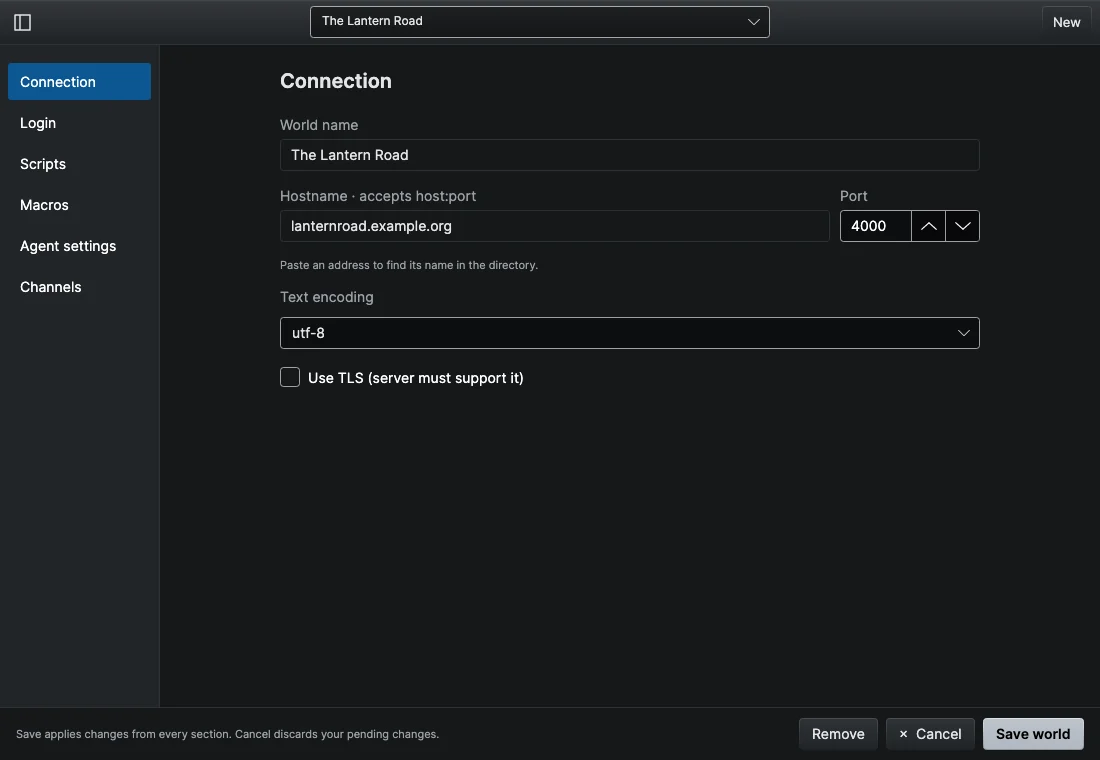
Most connection settings are in the world editor. Right-click the saved world and choose Edit…, then pick Connection in the section list.
The world will not connect
Work through these in order.
- Check the address. Hostname · accepts host:port takes a name such as
mud.example.orgor an IP address, withouttelnet://or any other prefix. If you see "Couldn't find the hostname", the name is wrong or the world has moved. Directory listings can go out of date, so compare with the world's own website. - Check the port. MUDs rarely use a standard port; the world's website or listing gives the right one (often a four digit number such as 4000). You can type
host:portin the hostname box, or set Port separately. - Check TLS. Use TLS (server must support it) encrypts the connection, but only works when the world offers TLS, usually on a different port from plain telnet. If the world has no TLS port, turn this off. If it does, make sure Port is the TLS port. The client checks the world's security certificate the same way your system does, so a world with an expired or self-signed certificate will fail over TLS; use its plain port instead.
- Wait for the timeout. The client gives up after 15 seconds and shows "Connection timed out". That usually means the world is down, or something between you and the world is blocking the port.
- Check firewalls and networks. School, office, hotel and some public networks block unusual ports. Try another network (a phone hotspot is a quick test). If you run a firewall or security software on your computer, allow Wandur to make outgoing connections.
Garbled or strange characters
If accented letters, box-drawing lines or symbols show up as � or as two odd characters where one should be, the world is probably using a different text encoding than the client expects.
- Open the world editor and go to Connection.
- Change Text encoding from
utf-8(the default) tolatin1, or the other way round. - Choose Save world, then reconnect.
Older worlds often use Latin-1; newer ones usually use UTF-8. These are the only two encodings the client supports.
No map, or the map is wrong
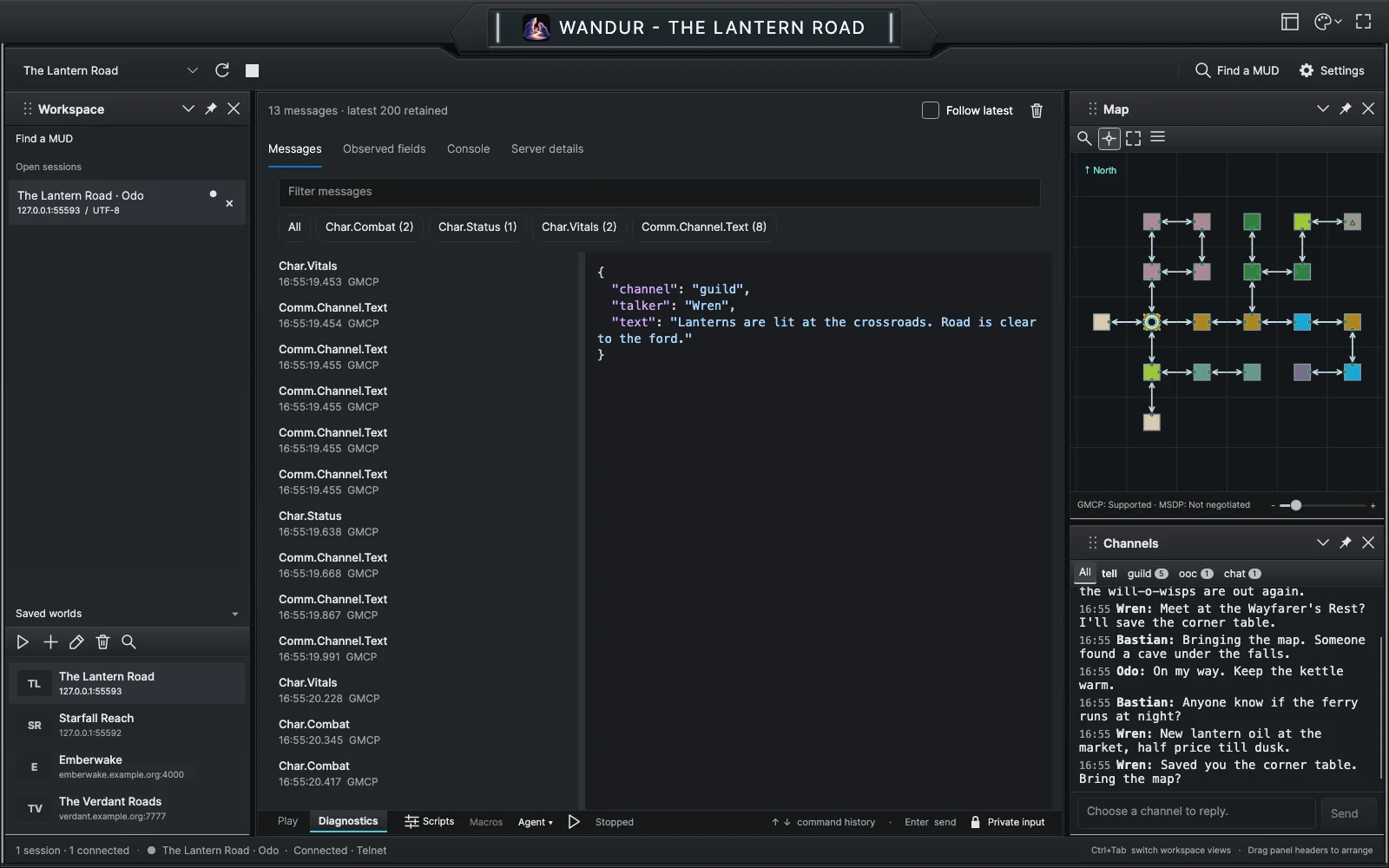
Open the map with View > Map Panel. The map works best when the world sends room information through GMCP or MSDP, two ways for a world to send structured data (room numbers, exits, health) alongside the text. Without them, the client tries to map from the room text alone, which is more cautious and can leave rooms uncertain or separate.
To see what your world sends:
- The status line under the map shows
GMCP:andMSDP:with Supported, Declined or Not negotiated. Hover over it for details, including Room fields received. "Not negotiated" means the world has not answered yet, not that it lacks support. - The session's Diagnostics tab lists every GMCP and MSDP message received. "No GMCP or MSDP messages received yet" means nothing has arrived on this connection.
Some worlds only send room data after you log in, look or move, so try look or take a step first.
No health bars
The bars under the transcript (Health, Mana, Movement and so on) appear when two things are true: the world sends GMCP or MSDP data, and the directory has a mapping that tells the client which values are which for that world. If either is missing, the strip stays hidden. Check the Diagnostics tab as above. If your world sends the data but no bars appear, you can draw your own with a short script; see scripting.
Warnings the first time you open the client
On Windows, SmartScreen may say "Windows protected your PC" because the build is not code-signed yet. Choose More info, then Run anyway. On macOS, the builds are signed and notarized, so they should open normally after you drag Wandur to Applications. The install page covers each system step by step.
Where your data is stored
Everything the client saves (your worlds, settings, maps, scripts, macros, agent settings and session history) is in one database file, wandur.db, in the client's data folder:
| System | Folder |
|---|---|
| macOS | ~/Library/Application Support/Wandur |
| Windows | %APPDATA%\Wandur (usually C:\Users\<you>\AppData\Roaming\Wandur) |
| Linux | ~/.config/Wandur (or $XDG_CONFIG_HOME/Wandur if you set it) |
The same folder holds a models folder if you installed room terrain inference for the map. Saved passwords and API keys are not in this folder; they are in your system's credential store (macOS Keychain, Windows Credential Manager, or the Linux Secret Service).
To back up everything, quit the client and copy the folder. Do not edit wandur.db while the client is running.
Reporting a bug
Open an issue at github.com/Wundur-AI/wandur/issues. Include:
- your system and version (for example, macOS 15 on Apple silicon, or Windows 11),
- the Wandur version you downloaded,
- the world you were connected to, if it matters,
- what you did, what you expected and what happened instead,
- a screenshot, if it helps.
Leave out passwords, and check that pasted text or screenshots do not show anything private.