WMC help
MUD chat channels, tells and the Channels panel
Wandur gathers chat, tells, group talk and other channel messages into a Channels panel, so a conversation does not scroll away while you play. This page explains how Wandur recognizes channel lines, how to use the panel and reply from it, and how to teach Wandur the channels of a world it does not recognize yet.
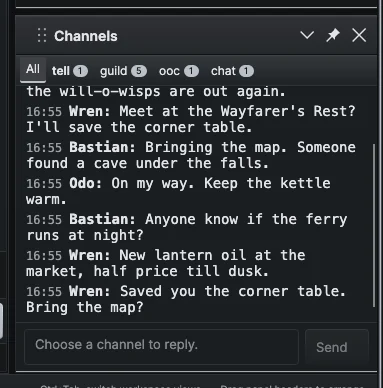
The panel is a copy
Every line still appears in the transcript exactly as the world sent it. The Channels panel shows a second copy of the lines Wandur recognizes as channel messages. Closing the panel, or a rule that matches the wrong lines, can never lose anything from the transcript.
How Wandur recognizes channels
There are two ways a line becomes a channel message.
From the world, through GMCP
GMCP (Generic MUD Communication Protocol) lets a world send structured data alongside the text. Wandur tells every world it supports GMCP's Comm.Channel package. A world that sends Comm.Channel.Text names the channel and the speaker itself, so these messages land on the right tab with no setup. Most such worlds also print the same line in the transcript a moment later; Wandur recognizes that copy and does not show it twice in the panel.
From the text, through channel rules
Most worlds print channel lines as plain text, in a shape their admins choose, such as:
Mara tells you 'meet me at the gate'
[OOC] Tobin: anyone up for a run?
Wandur recognizes these with channel rules: patterns that match the start of a line and pick out the speaker and the message.
- Wandur ships default rules for common codebase families (SMAUG, SWR, Diku, ROM, CircleMUD, LP and a general set). They cover channels such as tell, ooc, chat, gossip, newbie, auction, shout and group tells. Wandur picks a family from the codebase listed for the world in the wandur.net directory, or from what the world reports about itself.
- You can teach a world its own rules from the transcript (below). A world's own rules are checked before the shipped defaults.
Rules only read public output. While private input is on, or during an automatic login, nothing is passed to the panel.
Using the Channels panel
The panel is docked on the right, under the map, and is on by default. To show or hide it, use View → Channels panel. To change whether it appears by default, use Show the Channels panel in Settings → General. The panel shows the channels of the session you are looking at.
Tabs
- All shows every channel message in order.
- A tab for each channel appears the first time a message arrives on it.
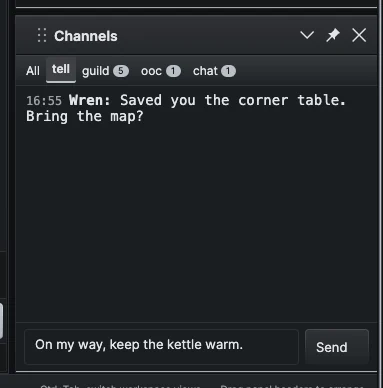
- Private channels, such as tells, whispers and pages, get tabs right after All, because a private message usually waits for an answer.
- A tab you are not looking at shows a count of unread messages.
Each message shows a muted timestamp, the speaker in bold, and the text in the world's own colors. The newest message is at the bottom, and the panel follows new messages unless you have scrolled up to read. Each tab keeps its latest 500 messages; the transcript keeps everything.
Before any channel traffic arrives, the panel reads "Channel messages appear here and stay in the transcript."
Replying from the panel
- Choose the tab of the channel you want to answer on.
- Type in the reply box at the bottom. It reads "Say something on" followed by the channel name.
- Press Enter or choose Send.
Wandur sends the channel's reply command followed by your text. For example, on an ooc tab, typing hello sends ooc hello. On a private tab, such as tells, the reply goes to the last person who spoke there: tell Mara on my way.
The reply box is unavailable when:
- the All tab is selected ("Choose a channel to reply.");
- Wandur does not know the command for that channel ("Wandur does not know the command for this channel yet.");
- the session is disconnected, or private input is on.
You can always answer from the normal command box instead.
Teaching Wandur a channel
When a channel line does not show up in the panel, teach Wandur its shape:
- Right-click the line in the transcript and choose Mark as channel.... If you first select two different lines of the same channel, Wandur uses both to make a better rule.
- The Mark as channel dialog shows the Example line and Wandur's guess at its pieces: Head (before the speaker), Speaker pattern and Separator (between speaker and text). Adjust a piece, or edit the full Rule (regular expression) directly.
- Under Channel, pick an existing channel or New channel... and give it a name.
- Check the Reply command (for tells, it includes
{speaker}, which Wandur replaces with the last speaker) and Private (answers one person). - Look at the preview. It runs your rule over the last 200 transcript lines and shows how many match, with the first few matches. If it matches too much or too little, adjust the pieces.
- Choose Save rule.
The rule is saved with the world and takes effect immediately, in every open session of that world. Rules are stored with a saved world; the offline demo cannot be taught.
Lines that are not channels
If a line shows up in the panel but is not chat, right-click it, choose Mark as channel..., and choose Not a channel. This saves an exclusion: lines of that shape are no longer treated as a channel, even if a default rule would match them.
Managing channel rules
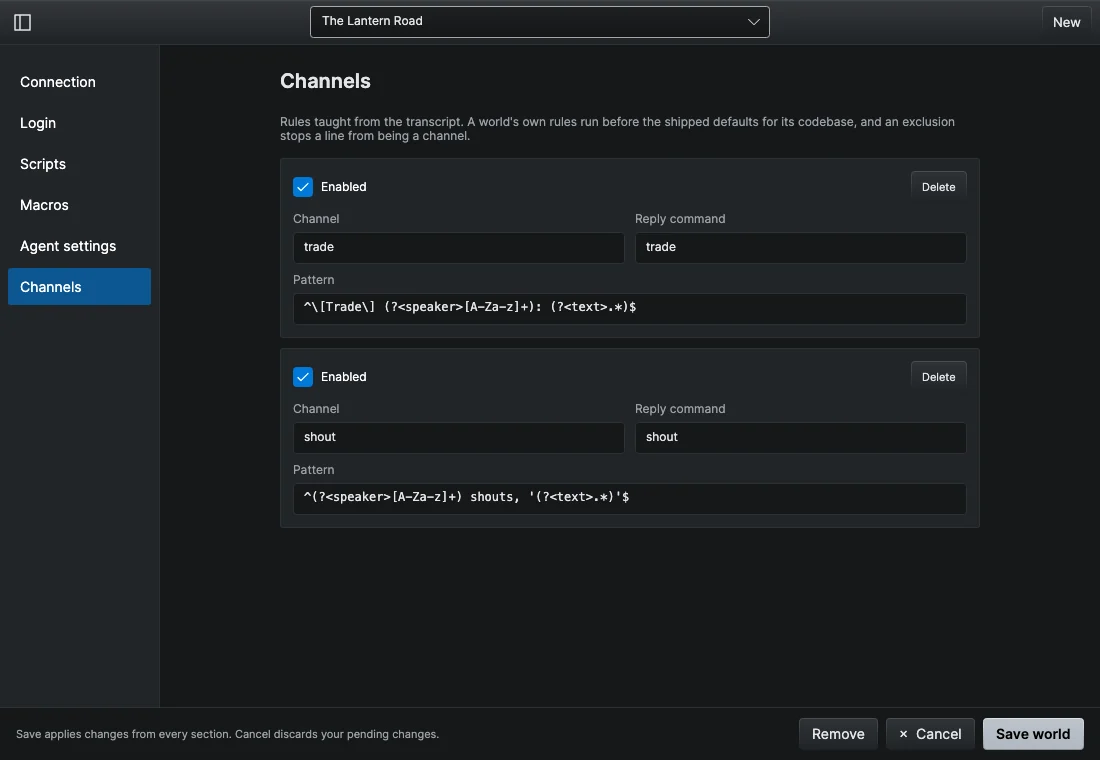
To see a world's rules, right-click the world in Saved worlds in the Workspace panel, choose Edit…, and open the Channels section of World settings. Each rule shows its Channel, Pattern and Reply command, which you can edit, along with an Enabled switch, a tag for exclusions and private channels, and a Delete button. A pattern Wandur cannot read is refused when you save.
Worlds that send GMCP channel messages need no rules at all. Collapsing channel lines inside the transcript is not supported; the panel is the place to follow conversations.