WMC help
Health, mana and resource bars in Wandur
Wandur can show your health, mana and other resources as bars under the transcript. This page explains where those bars come from, why some worlds show none, and how to use the Diagnostics view to see exactly what a world sends.
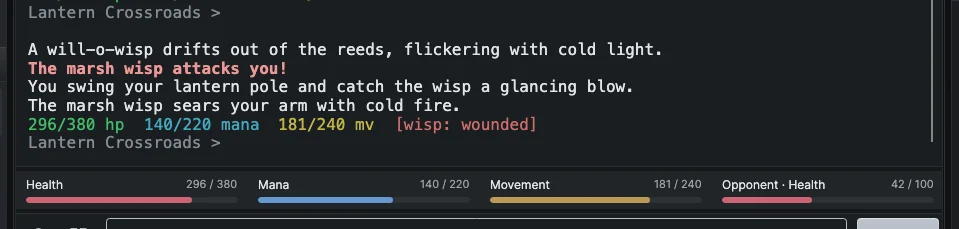
What the bars show
The bars sit in a strip between the transcript and the command box. Each bar shows a name, the current and maximum values (for example 412 / 530) and a filled line. Hover over a bar to see its values in a tooltip. As the window gets wider, the bars arrange themselves into up to four columns.
Common bars have their own names and colors: Health (red), Mana (blue), Movement and Energy (amber), Shield, Hull, Fuel, Ammunition and Experience. Other values use the name the world gives them and your theme's accent color.
Bars are not only about your character. A world can also report:
- an opponent, shown as Opponent · Health and so on during a fight;
- a vehicle, such as a ship, shown as Vehicle · Hull, Shield or Fuel;
- the world itself, shown with the World prefix.
When a fight ends, the opponent bars disappear, and they come back for the next fight.
A bar appears only when Wandur knows both the current value and the maximum. Wandur never guesses a maximum. The strip shows only while you are connected, and it hides completely when there is nothing to show.
Where the numbers come from
Many worlds send character data alongside the text through one of two protocols:
- GMCP (Generic MUD Communication Protocol) sends small JSON messages, for example a
Char.Vitalspackage with your health and mana. - MSDP (MUD Server Data Protocol) sends named variables, such as
HEALTHandHEALTH_MAX.
Every world names and arranges these values differently. One world sends hp and maxhp, another sends HEALTH and HEALTH_MAX, and a third puts them inside a larger package. So Wandur does not guess. It shows bars through a protocol mapping: a short description, made for one world, that says which field is your health, which is its maximum, which belongs to an opponent, and so on.
Mappings come from the wandur.net directory
Protocol mappings are reviewed and published through the wandur.net world directory. When you open a world, Wandur looks up the directory's entry for that exact address, port and TLS setting. If the entry has a mapping, Wandur:
- adds the mapping to your saved world;
- asks the world for the mapped MSDP variables, so their values start arriving;
- fills the bars as new values come in.
The mapping is stored with your saved world, so it keeps working when you are offline. If the directory later stops listing a mapping, your saved copy stays in place. Wandur only applies a mapping to the exact address it was made for. If you change a saved world's address, port or TLS setting, a mapping made for the old address no longer applies.
The client has no editor for protocol mappings.
When a world sends nothing
If a world sends no GMCP or MSDP data, or if no mapping exists for it yet, Wandur shows no bars. The strip stays hidden. Nothing is broken; the world's own prompt line in the transcript still shows your stats as before.
A world can send perfectly good vitals and still show no bars, because without a mapping Wandur does not know which field is which. You can check what the world sends with Diagnostics, below.
Bars from scripts
A script can add its own gauges to the same strip. Gauges from a script panel created with dock: "bars" appear after the mapped bars and look the same. A world's directory listing can also include scripts, and those can add gauges the same way. See Scripting for how to write one.
Seeing what a world sends: Diagnostics
Every session has two tabs in the footer at the bottom of the session: Play and Diagnostics. Play is the normal view. Switching to Diagnostics keeps your connection, transcript and typed command exactly as they were; the command box is hidden there to leave more room.
Diagnostics has four tabs.
Messages
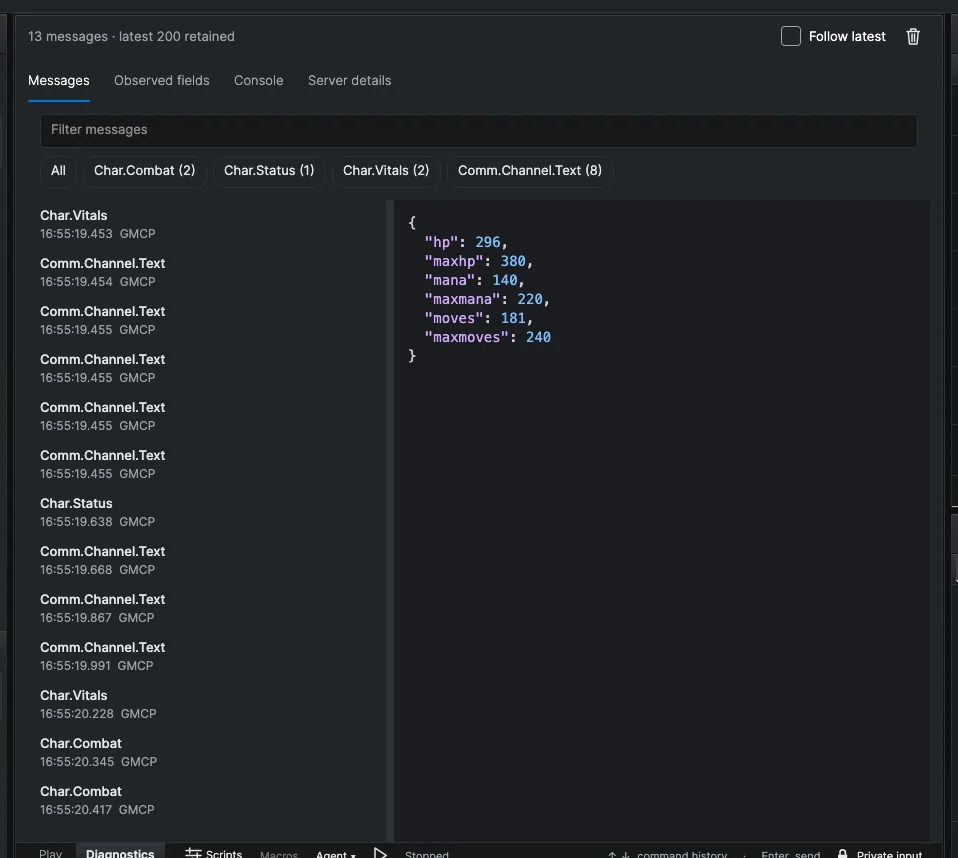
Messages lists every GMCP and MSDP message the world has sent during this connection, in arrival order, with the time and the package or variable name. Select a message to see its contents on the right, formatted as JSON. MSDP tables and lists are also shown as JSON so they are easier to read. You can select and copy text from the details.
- The chips above the list show each kind of message received, with a count. Click chips to show only those kinds, or All to show everything.
- Filter messages narrows the list to names and contents that contain your text.
- Follow latest selects each new message as it arrives. Selecting an older message pauses following.
- The trash button (Clear diagnostic history) empties the list.
If the list is empty, the world has not sent any GMCP or MSDP data on this connection yet. Many worlds start only after you log in, look or move.
Observed fields
Observed fields shows the names and types of every field received so far, without the values, plus a fingerprint that changes when new fields or types appear. It is a quick way to see what data a world offers, which is what a protocol mapping is made from. It shows only what has arrived, not everything the world could send.
Console
Console shows the raw text stream from the world and the commands you sent, with control characters made visible. Use Pause to stop it updating, Wrap lines to wrap long lines, and Copy or Clear as needed.
Server details
Server details shows what the world says about itself through MSSP (MUD Server Status Protocol): its name, codebase, player count, uptime and the protocols it claims to support. Many worlds do not send this.
Limits and privacy
Diagnostics keeps up to 200 messages for each session, in memory only. Reconnecting clears it; disconnecting keeps it so you can still look. Nothing is saved to disk or uploaded.
While you type a password or Wandur logs you in, passwords, tokens and similar fields in incoming messages are masked, and the Console shows a [private] marker in place of hidden text. Your outgoing commands and credentials are never captured in the Messages list.
Telling which case you are in
| What you see | What it means |
|---|---|
| Diagnostics is empty after you log in and move | The world sends no GMCP or MSDP data. No bars are possible from protocol data. |
| Diagnostics shows vitals, but there are no bars | The world sends data, but there is no mapping for it yet. |
| Bars show for you, but not for an opponent | The mapping, or the world, covers only your character. |
| Bars stopped after you changed the world's address | The saved mapping belongs to the old address. |
For the map's own protocol status (which room fields a world sends), see The map.