WMC help
Find a MUD and connect to your first world
This page takes you from an empty client to playing: finding a MUD in the built-in directory or adding one by its address, connecting, and sending commands. A MUD (multi-user dungeon) is a text game you play by typing commands; Wandur calls each game a world.
Find a MUD in the directory
Wandur has a built-in directory of worlds, the same one you can browse at /worlds. Open it any of these ways:
- Click the magnifier button in the toolbar.
- Choose File > Find a MUD (Ctrl+T, or Cmd+T on a Mac).
- Click Find a MUD in the Workspace panel.
The directory opens as a panel. The list is saved on your computer, so search works offline, and it refreshes every 24 hours. The refresh button beside the Find a MUD heading fetches it again now.
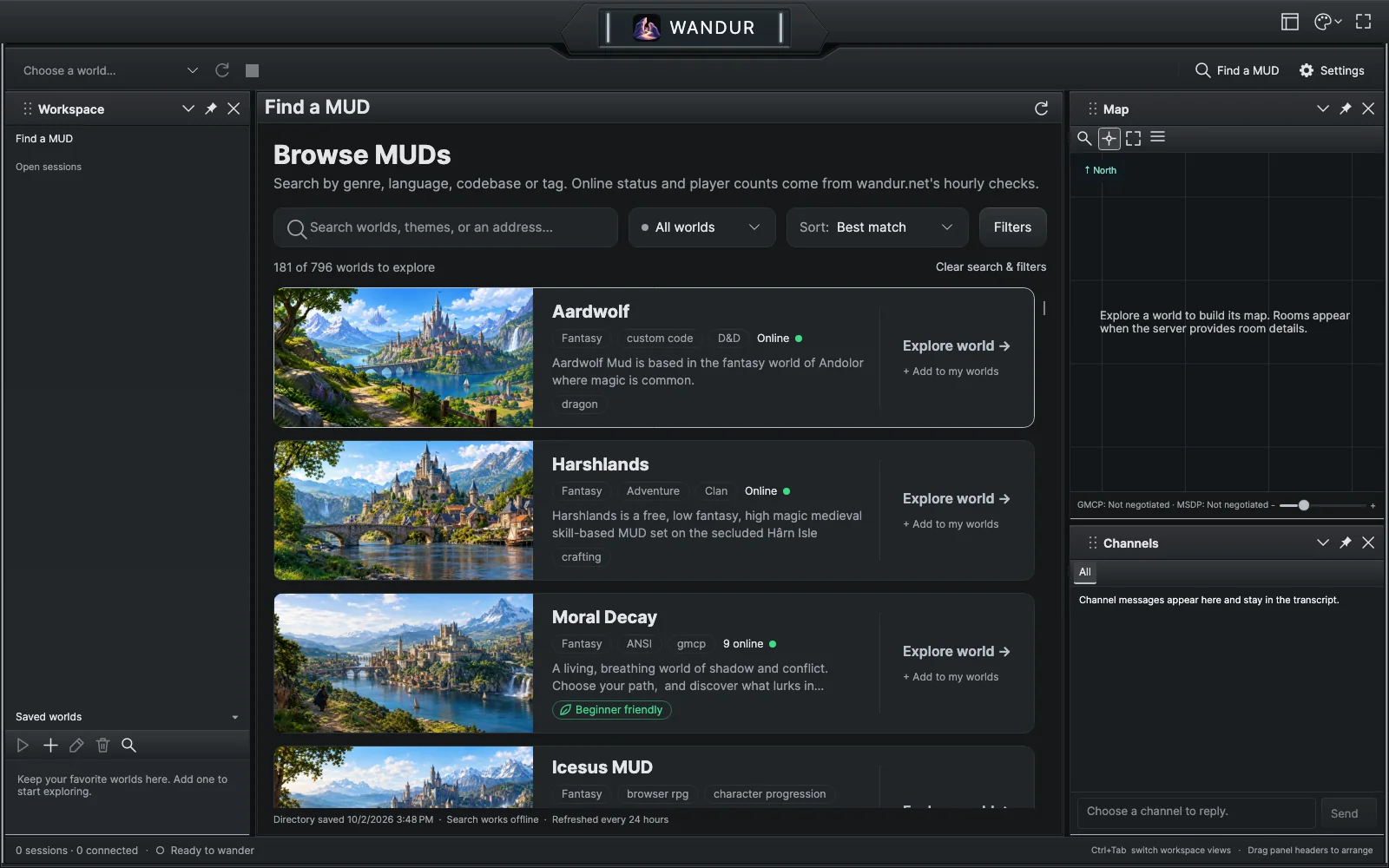
Search, sort and filter
- Search box. Type a world's name, a theme or an address.
- All worlds / Online now. Online now shows only worlds the directory last reported as online. This is the directory's latest report, not a live connection test.
- Sort. Order by best match, name, last observed players, highest rated, recently updated or newest.
- Filters. Opens the advanced search. To filter by genre, use Theme and Game type. The other filters are Language, Roleplaying, Player killing, Codebase, Development stage, World size (rooms), Server location, Feature / tag, Min. observed players and Max. observed players, Minimum rating, Connection security (TLS available), MUD connections and Adult worlds.
All filters must match at once. A world with no player count does not match a player count filter. Worlds the directory marks as adult content stay hidden unless you check Show adult worlds; your saved worlds are never hidden. Clear search & filters (or Start again inside Filters) resets everything.
A world's page
Each row shows the world's name, tags and a short description, with two actions:
- Explore world → opens the world's own page.
- + Add to my worlds saves it to your Saved worlds list without connecting. It changes to Saved ✓ once saved.
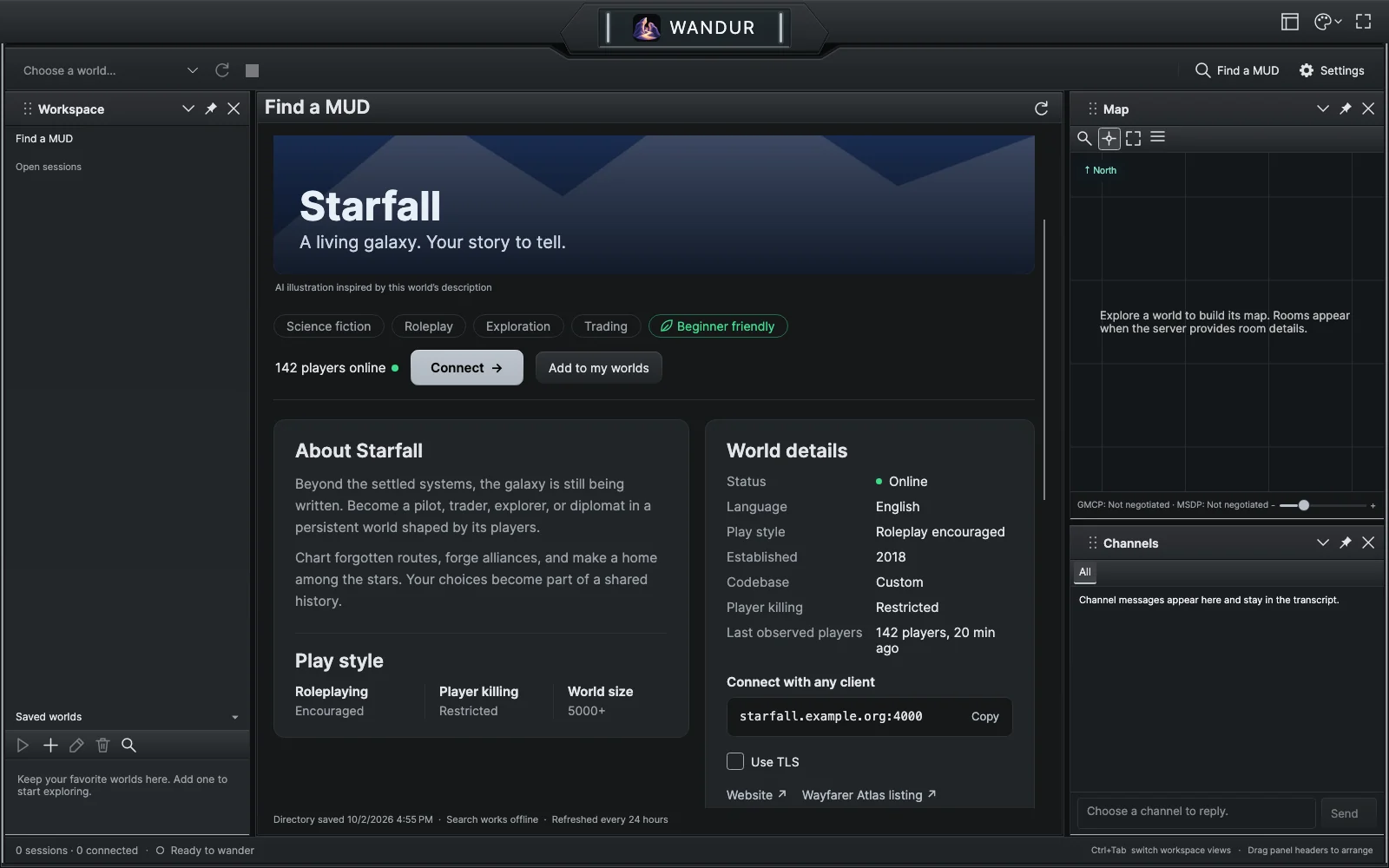
A world's page has an About section with its description, World details (status, codebase, player counts and more), the address under Connect with any client with a copy button, and links such as Website or Discord when the world lists them.
- Connect → saves the world to your list and connects to it in a new session.
- Add to my worlds saves it without connecting.
- Use TLS appears when the world offers an encrypted port. Check it before connecting to use the encrypted connection.
← All worlds (or Escape) takes you back to the list with your search and position kept.
Add a world by address
If a world is not in the directory, or you already know its address, add it yourself:
- Choose File > Add World… (Ctrl+N, or Cmd+N on a Mac), or click the + (Add a world) button at the top of the Saved worlds list.
- In the World settings window, under Connection, fill in:
- Hostname: the server name or IP address, such as
mud.example.org. You can pastehost:portand Wandur splits it into the two fields. - Port: a number from 1 to 65535. It starts at 4000.
- World name: any name you like. If the address matches a directory listing, Wandur fills in its name for you.
- Text encoding:
utf-8(the default) orlatin1. If accented letters or symbols show up garbled, try the other one. - Use TLS (server must support it): turns on an encrypted connection. Only check it if the world lists a TLS port, and use that port number.
- Hostname: the server name or IP address, such as
- Click Save world.
The Login section of the same window is where you can save a password and turn on automatic login. See Logging in safely.
Saved worlds and open sessions
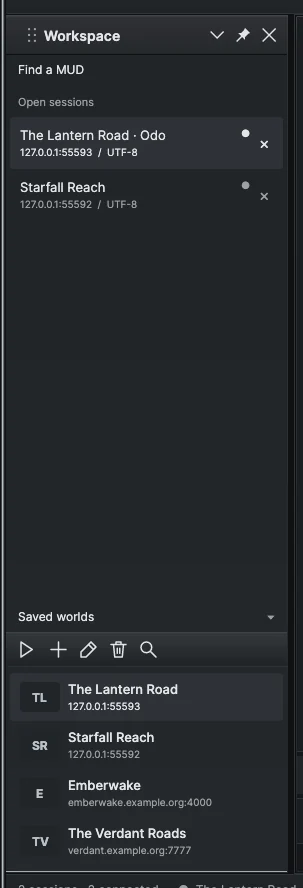
The Workspace panel (View > Workspace) holds two lists:
- Saved worlds: every world you have added. Double-click a world or press Enter to connect. Each row shows the address, with "TLS" when the connection is encrypted. Right-click a row for Edit… and Delete saved world. Worlds you connect to often and recently rise to the top.
- Open sessions: every connection that is open right now. Each connection is a session with its own tab. Connecting again opens another session, even for the same world. Right-click a session to rename it, open it in a separate window, or close it. Closing a session disconnects it.
You can also connect from the toolbar: choose a world from the world list and click the play button, or use Session > Connect to Selected World (Ctrl+Enter, or Cmd+Enter). Session > Disconnect (Ctrl+D, or Cmd+D) ends the active session. Ctrl+Tab moves between open items in the workspace.
Send commands
Type into the command box at the bottom of the session ("Enter a command…") and press Enter or click Send ↵. Ctrl+L (Cmd+L on a Mac) puts the cursor back in the command box, and so does a click on the game text.
Some quick help for new players:
- The eye button sends
look. - The grid button beside it (Controls) opens quick commands (Look around, Who's here, Inventory, Help) and a compass for moving north, south, east, west, up and down. Commands depend on your world, so these are common ones, not guaranteed ones. Typing
helpis the usual place to start in any MUD.
By default your typed commands are not repeated in the game text. To show them, open Settings (Preferences…, Ctrl+comma or Cmd+comma), choose Input, and check Show my commands in the transcript.
Command history and completion
- Up and Down arrows step through the commands you have sent in this session. The history keeps your last 200 commands, does not store the same command twice in a row, and starts fresh with each new connection.
- Completion: as you type, grayed text may appear after the cursor, drawn from your command history and words seen in this world. Press Tab or the Right arrow to accept it, or Escape to hide it. Turn this off under Settings > Input > Suggest completions while typing.
Passwords and anything else typed as private input never enter the history or the suggestions. Logging in safely explains how that works.