WMC help
Install Wandur on Windows, macOS and Linux
This page covers downloading WMC - Wandur Mud Client and getting it running for the first time on Windows, macOS or Linux. Each download is self-contained, so there is nothing else to install first.
Download
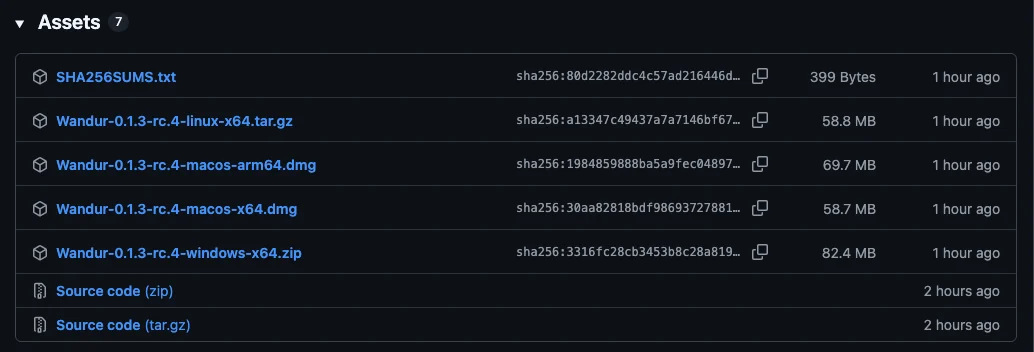
Get the latest release from github.com/Wundur-AI/wandur/releases/latest. Under Assets, pick the file for your system (<version> is the release number, for example 0.1.0):
| System | File |
|---|---|
| Windows 10 or 11 (x64) | Wandur-<version>-windows-x64.zip |
| macOS, Apple silicon (M1 and later) | Wandur-<version>-macos-arm64.dmg |
| macOS, Intel | Wandur-<version>-macos-x64.dmg |
| Linux (x64) | Wandur-<version>-linux-x64.tar.gz |
If you are not sure which Mac you have, open the Apple menu, choose About This Mac, and look at the Chip or Processor line. "Apple M" means Apple silicon; "Intel" means Intel.
Windows
- Download the
.zipfile. - Extract the whole zip somewhere you keep programs, such as a folder in your user profile. The zip holds one folder,
Wandur-<version>-windows-x64, andWandur.exesits inside it next to the files it needs. Copying out onlyWandur.exewill not work. - Open the folder and run
Wandur.exe.
The Windows build is not code-signed yet, so SmartScreen may show "Windows protected your PC". Click More info, then Run anyway. Windows asks once per download.
To keep a shortcut, right-click Wandur.exe and pin it to Start or the taskbar.
macOS
- Download the
.dmgfor your Mac (Apple silicon or Intel). - Open it. A window appears with the Wandur app on the left, an Applications folder on the right, and a line asking you to drag one onto the other.
- Drag Wandur onto Applications.
- Eject the disk image, then open Wandur from Applications or Launchpad.
The Mac builds are signed with an Apple Developer ID and notarized by Apple, so Wandur opens with a double-click like any other app.
Linux
Unpack the archive and run the app from its folder:
tar -xzf Wandur-<version>-linux-x64.tar.gz
cd Wandur-<version>-linux-x64
chmod +x Wandur    # tar keeps the bit; some archive tools drop it
./Wandur
Add Wandur to your application menu
First move the unpacked folder to where you want to keep it, because the menu entry points at that location. Then run this from inside the folder:
./install-desktop-entry.sh
It adds the entry for your user only. To remove it later:
rm ~/.local/share/applications/net.wandur.client.desktop \
   ~/.local/share/icons/hicolor/256x256/apps/net.wandur.client.png
Saved passwords on Linux
Wandur saves world passwords through the Secret Service, using the secret-tool command. Install it if you want to save passwords: the package is libsecret-tools on Debian and Ubuntu, and libsecret on Fedora and Arch. You also need a Secret Service keyring running, such as GNOME Keyring or KeePassXC. Everything else in the client works without it. See Logging in safely for how saved passwords work.
Check your download
Each release includes SHA256SUMS.txt, which lists a checksum for every file. Checking it confirms your download arrived complete and unchanged. Download SHA256SUMS.txt into the same folder as your download, then run:
sha256sum -c SHA256SUMS.txt --ignore-missing      # Linux
shasum -a 256 -c SHA256SUMS.txt --ignore-missing  # macOS
Your file should be reported as OK.
On Windows, run this in PowerShell from the download folder:
Get-FileHash Wandur-<version>-windows-x64.zip
Compare the Hash it prints with the line for that file in SHA256SUMS.txt. PowerShell prints capital letters and the file uses lowercase, which is fine; the letters and digits must match.
Updating
Wandur does not update itself. To move to a new release, download it from the same page and install it the same way: on macOS, drag the new Wandur onto Applications and replace the old one; on Windows and Linux, extract the new folder and use it in place of the old one (on Linux, run ./install-desktop-entry.sh again from the new folder). Your saved worlds and settings are not stored in the app folder, so they carry over.
Next step
With the client open, find a MUD and connect.