WMC help
Log in to a MUD safely with saved passwords
This page explains how Wandur protects your MUD password: how it hides what you type, where a saved password is kept, how automatic login works, and what is kept out of your command history and logs. Read it before you save a password for the first time.
Private input
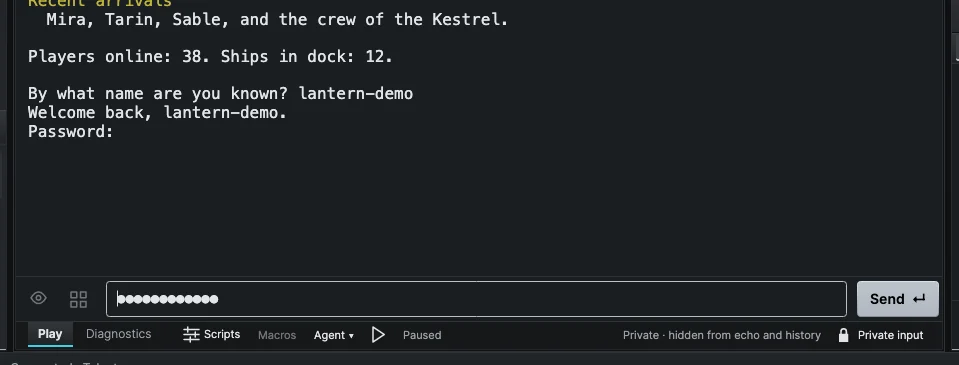
Private input is the client's password mode. While it is on:
- The command box shows dots (●) instead of the letters you type.
- What you send is not shown in the game text, whatever your echo setting.
- It does not enter command history, and the Up and Down arrows and completion suggestions are switched off.
- Copy and Cut are disabled in the command box.
- The bar under the session reads "Private · hidden from echo and history".
When private input ends, anything left unsent in the command box is cleared before the dots go away.
When it turns on by itself
You usually do not need to do anything. Private input turns on automatically in two cases:
- The world turns off its echo. Many MUDs tell the client "I will handle echo" (a Telnet signal) just before asking for a password, so the password is not printed back. Wandur treats that as private input until the world turns echo back on.
- The last line looks like a password prompt. If the world's latest prompt matches a password prompt such as
Password:orEnter your password:(also "passphrase" and "passcode"), private input stays on until that prompt is answered.
If a world uses unusual wording, you can teach Wandur its password prompt. Open the world's settings (right-click it in Saved worlds and choose Edit…), go to Login, open Custom login prompts and edit Password prompt. The patterns are case-insensitive regular expressions that match the whole prompt line.
Turning it on yourself
For anything else you want kept private, turn it on by hand with the Private input button (the padlock in the bar under the session), or Session > Private Input. It stays on until you turn it off or the session disconnects.
Saving a password
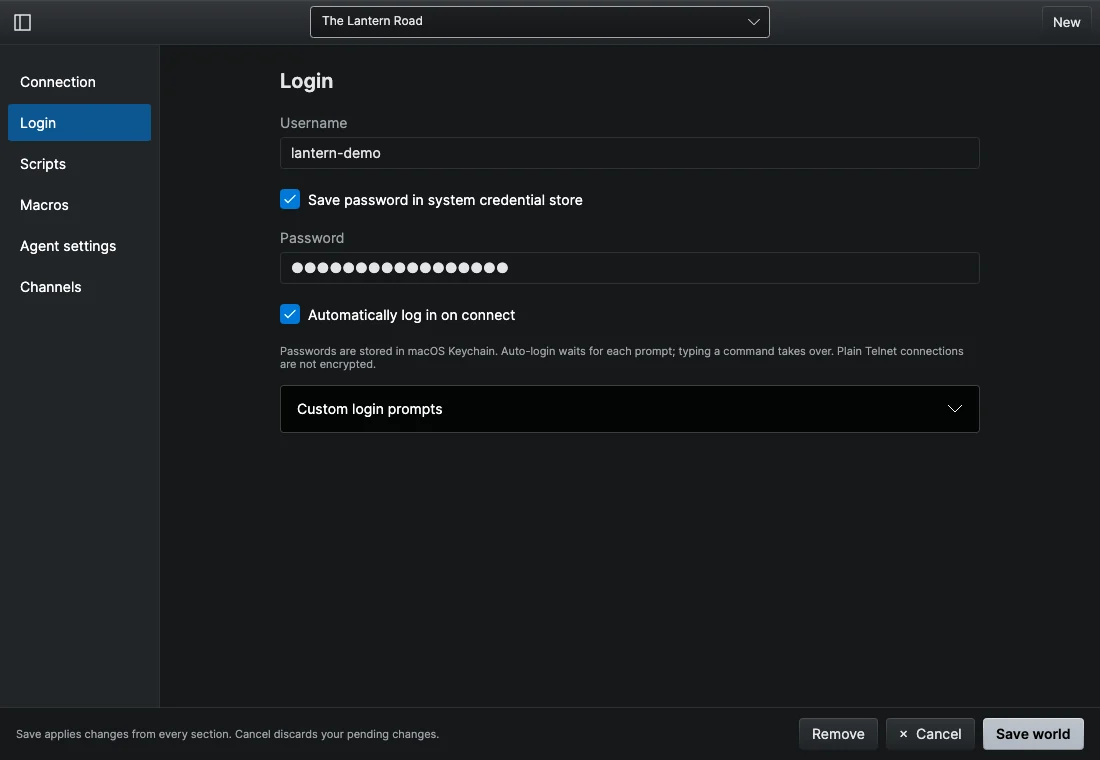
- Open the world's settings: right-click it in Saved worlds and choose Edit…, or use File > Add World… for a new world.
- Choose Login.
- Enter your Username (your character or account name).
- Check Save password in system credential store and type your Password.
- Click Save world.
The password must be a single line of up to 1024 characters. When a password is already saved, the field says "Saved · leave blank to keep"; type a new one only to replace it. Unchecking Save password in system credential store and saving removes it.
Where it is stored
Wandur never writes your password into its own settings or database. It goes to your operating system's credential store:
| System | Stored in | Listed as |
|---|---|---|
| Windows | Windows Credential Manager | Wandur/world-login/... |
| macOS | macOS Keychain | net.wandur.world-login |
| Linux | Secret Service, through secret-tool |
"Wandur world login" |
On Linux you need secret-tool (the libsecret-tools package on Debian and Ubuntu, libsecret on Fedora and Arch) and a Secret Service keyring such as GNOME Keyring or KeePassXC. If your keychain or keyring is locked, Wandur asks you to unlock it (and, on a Mac, to allow Wandur access) and try again.
A saved password belongs to one exact login: the world's host, port, TLS setting and username. If you change any of those, Wandur asks you to enter the password again and removes the old entry. Deleting a saved world also deletes its password.
Automatic login
With a password saved, check Automatically log in on connect in the same Login section. When you connect, Wandur then:
- Waits for the world to ask for your name, and sends your username.
- Waits for the password prompt, and sends your password.
It only answers a prompt the world is showing right now, never older text. Neither the username nor the password goes into history or the game text. If the world supports logging in through GMCP (structured data a MUD can exchange with the client alongside the text), Wandur sends the login that way instead and waits up to 30 seconds for the world to confirm it.
Automatic login tries once and does not retry:
- If you type a command while it is waiting, you take over and it stops.
- It gives up after two minutes, or if the world asks for your name again instead of your password.
- If a GMCP login is rejected or never confirmed, or the saved password cannot be read, Wandur shows a notice and you log in by hand.
If automatic login never starts, the world's prompts probably use wording Wandur does not recognize. Edit Username prompt and Password prompt under Custom login prompts.
Scripts pause during private input and automatic login, and macros pause during private input, so they do not see or send anything while you type a password.
What stays out of history and logs
- Command history never contains private input or automatic login values.
- Session history, the searchable record of past sessions saved on your computer, records private and login periods as a marker instead of text, and blanks out known password echoes.
- Diagnostics hides protocol data received during private input or login, and the raw console shows a
[private]marker in place of hidden text.
Wandur can only filter what it can recognize. A world might still print something sensitive in ordinary text, and the session history file on your computer is not encrypted.
Use TLS where you can
A plain Telnet connection is not encrypted, so your password crosses the network as readable text. If a world offers a TLS port, use it: in the directory, check Use TLS on the world's page; for a world you added yourself, check Use TLS (server must support it) and enter the TLS port. The session status then reads "Connected · TLS". See Find a MUD and connect.